 MADE FOR WORDPRESS
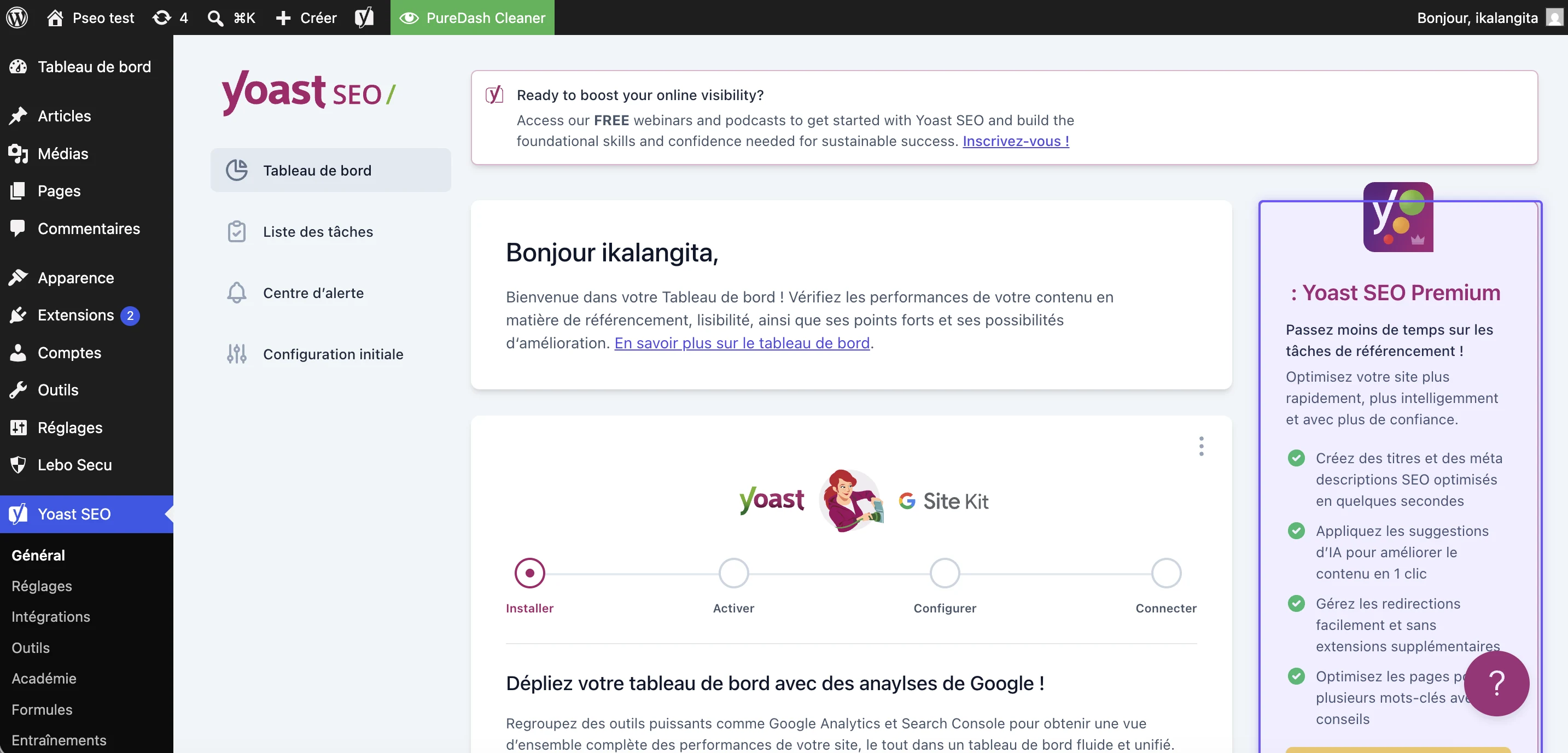
Make distractions disappear
Pick out persistent notices, unused menus, and dashboard widgets with visual selection.
Explore Zen ModeClean your WordPress dashboard with a single click. Hide distracting plugin notices, unused admin menus, and cluttered widgets to get back to your real work.

Promotional notices, crowded menus and unused widgets compete for your attention, so keep what helps and hide what gets in your way.
Pick out persistent notices, unused menus, and dashboard widgets with visual selection.
Explore Zen Mode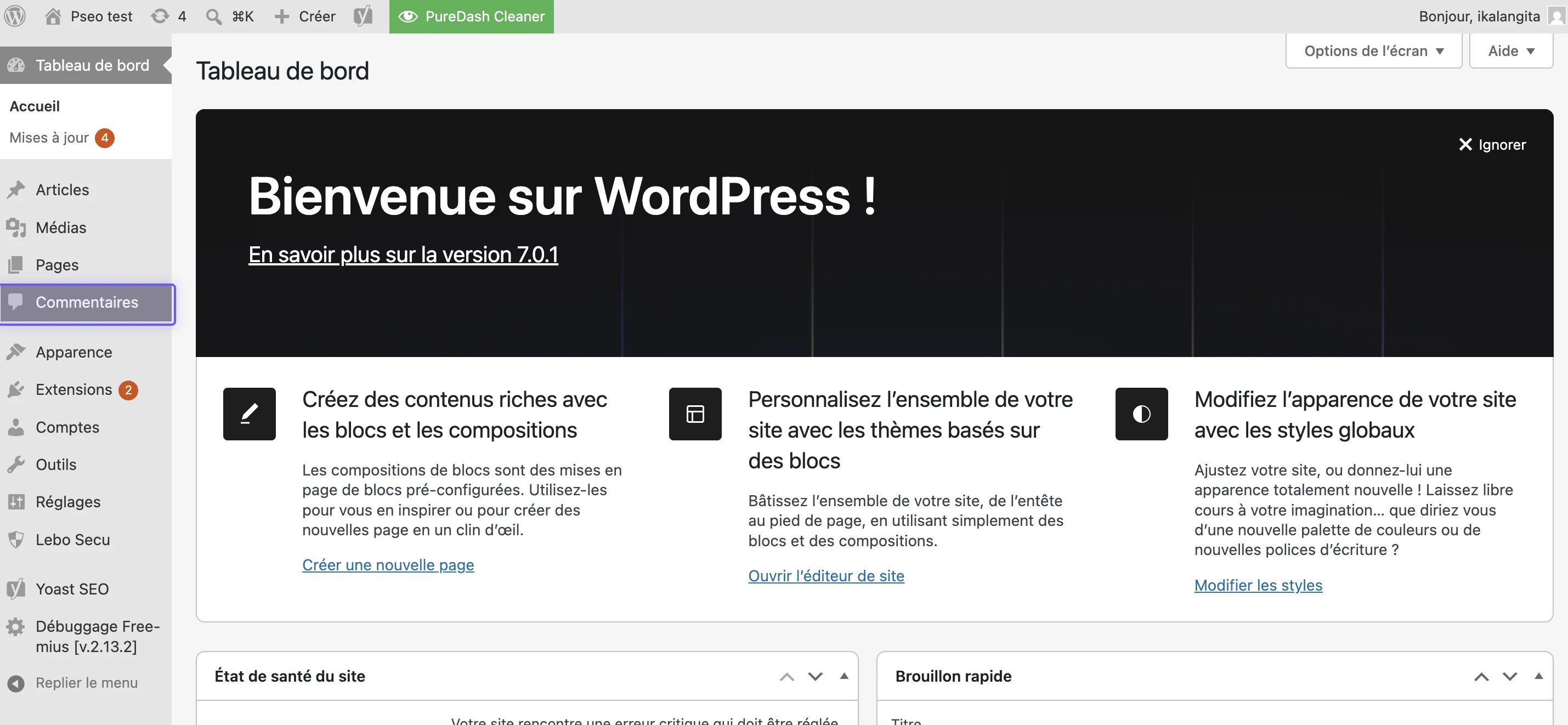
Keep the useful tools in view and hide the extras that crowd your administration.
Find your focus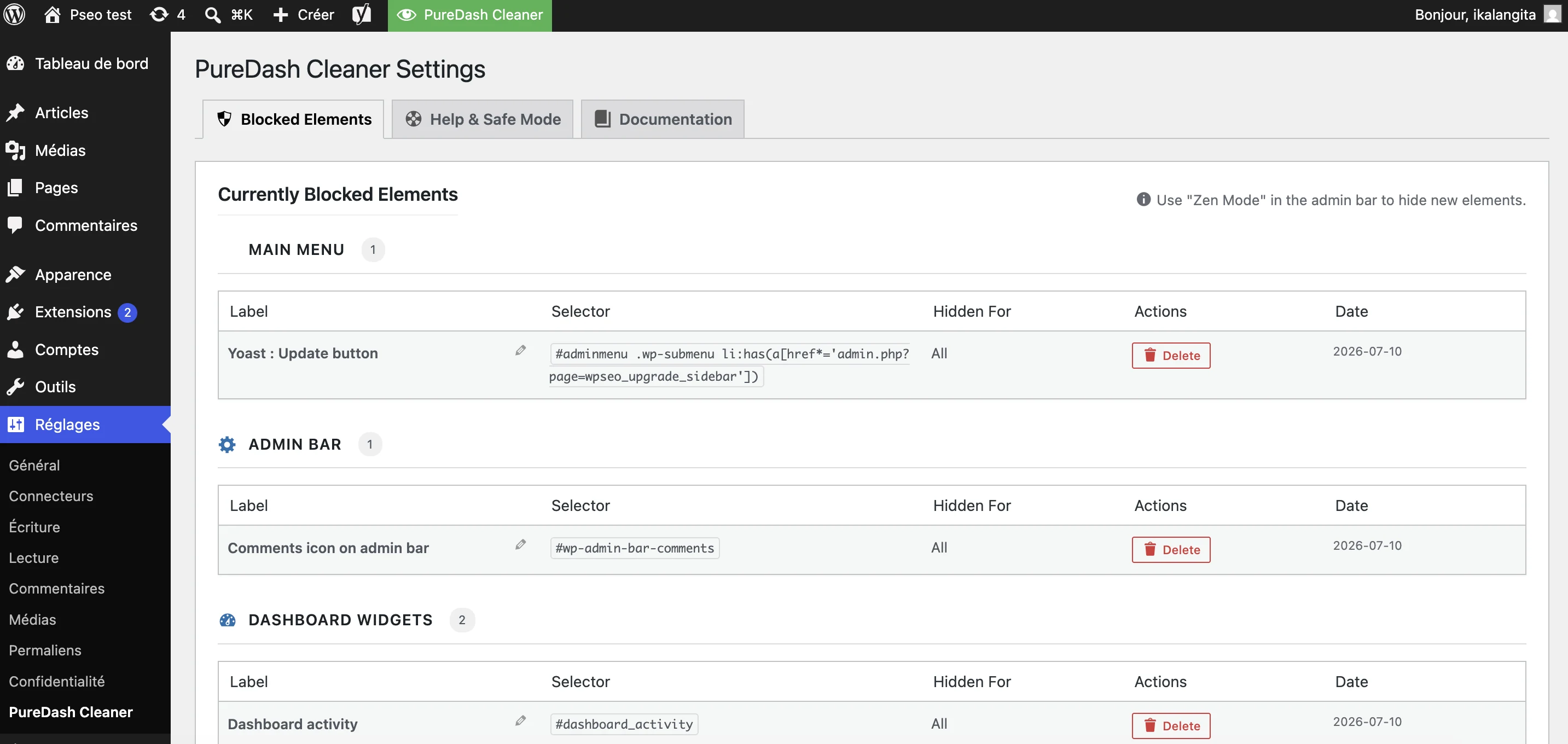
Give hidden elements a label and manage your rules from one place, with the freedom to change your mind anytime.
Explore your controlsTurn on Zen Mode from the WordPress admin bar, hover over an element to highlight it and click to choose what you want to hide.
A visual way to tidy up without writing CSS selectors.
Watch the walkthroughManage your hidden elements in Settings > PureDash Cleaner, where you can rename labels, review your rules or remove a rule to restore an element on the next page load.
If you hide something important, use Safe Mode to temporarily disable hiding rules and get back to your settings.
Learn about Safe ModeFind the free plugin on WordPress.org or in Plugins > Add New.
Open PureDash Cleaner from the top admin bar to start selecting.
Select an element, add an optional label, and confirm.
The right workspace for every role, your agency’s identity and more control over what stays accessible.
Choose which roles a hiding rule applies to when creating it or later with Edit Roles, while Free applies rules to all roles.
Remove hidden menus on the server and use Hard Block to redirect anyone opening a blocked menu URL to the dashboard.
Export your configuration as JSON and import it into another setup, either merging it with existing settings or replacing them.
Customize the login logo and colors, admin colors, footer and plugin identity, with Stealth Mode to hide PureDash from the plugin list.
Both versions offer unlimited hiding, while Pro adds more control and customization.
| What’s included | FREE | PRO |
|---|---|---|
| Visual selection with Zen Mode | Included | Included |
| Hide notices, widgets, admin menu & admin bar items | Included | Included |
| Temporary hiding until page reload | Included | Included |
| Categorized rules, labels & rule deletion | Included | Included |
| Reset All, Safe Mode & configuration locks | Included | Included |
| Number of hidden elements | Unlimited | Unlimited |
| Choose roles for each rule | All roles | Choose & edit roles |
| Server-side menu removal | Visual hiding only | Included |
| Hard Block for direct menu URLs | Not included | Included |
| JSON import & export | Not included | Merge or replace |
| White-label identity & Stealth Mode | Not included | Included |
| Login, admin colors & footer customization | Not included | Included |
| Remove all dashboard widgets at once | Not included | Included |
| Page blocking by role with a redirect URL | Not included | Included |
| Get PureDash Cleaner | GET PUREDASH | GET PUREDASH PRO |
Free hides interface elements visually without preventing access to their URLs, while Pro adds Hard Block for blocked menu URLs and page blocking by role.
Explore the plugin’s actual interface: select an element, manage your rules, and recover your view with Safe Mode.
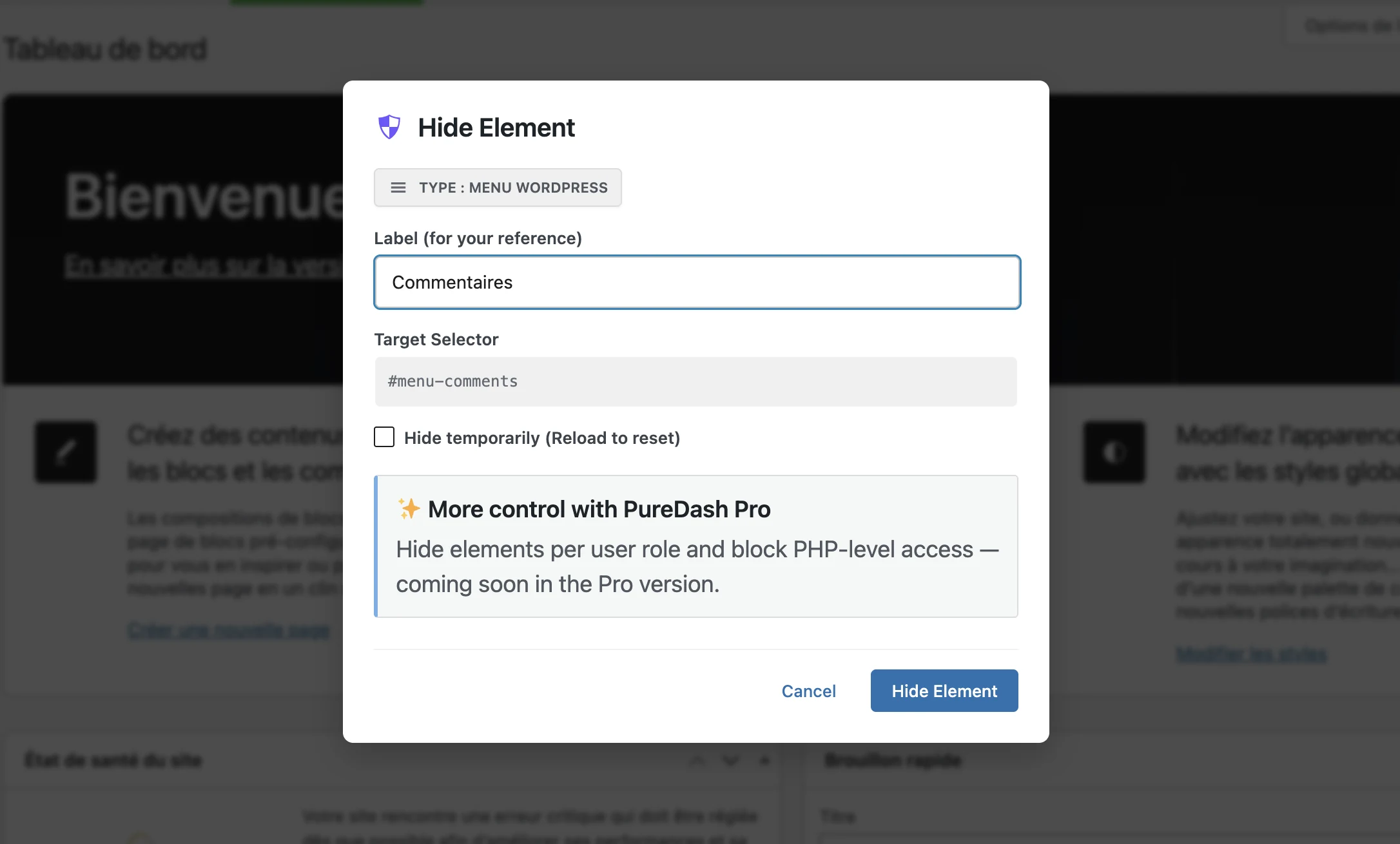
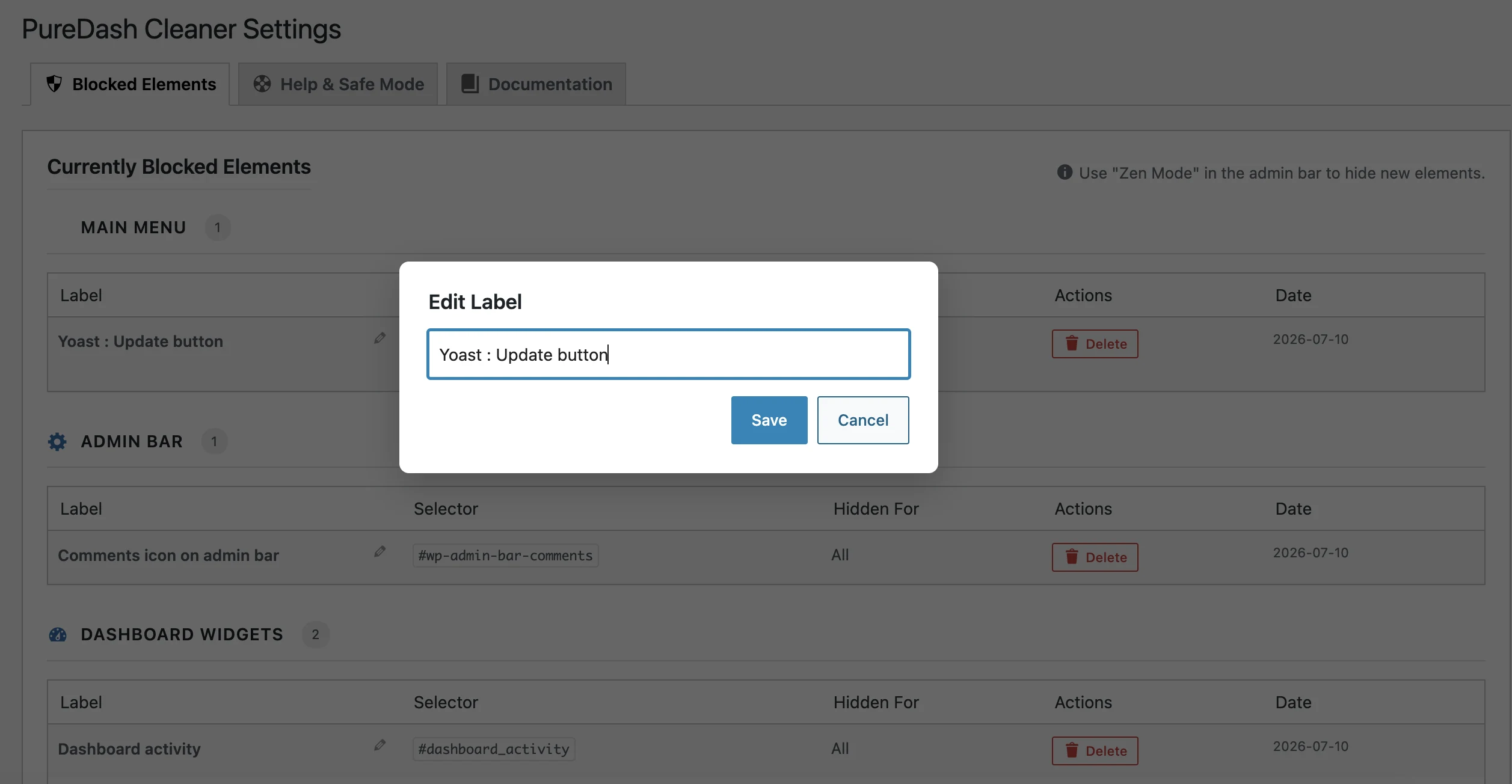
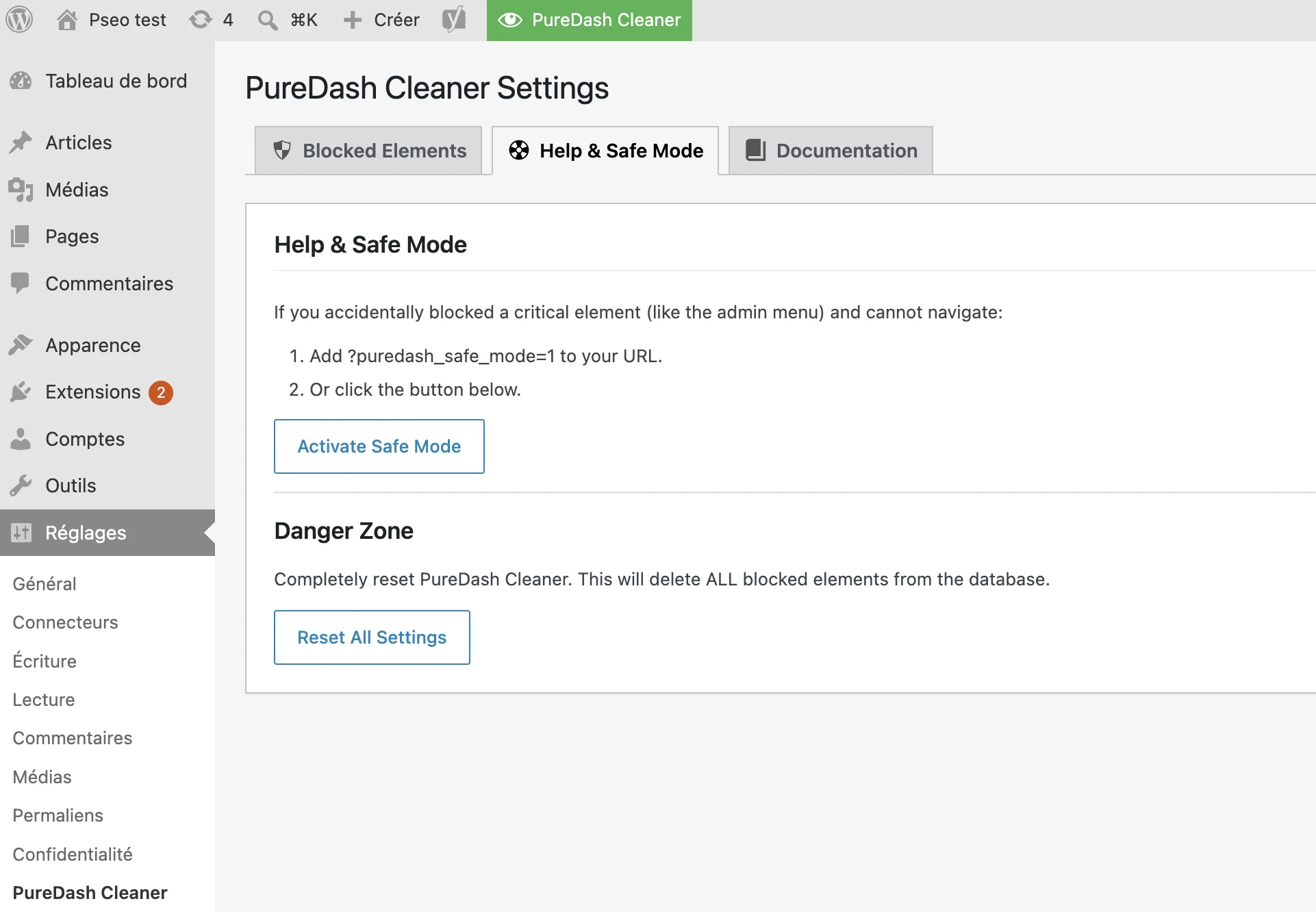
Follow a real walkthrough of PureDash Cleaner, from your first selection to a workspace with room to breathe.
PureDash Cleaner is a WordPress admin plugin that lets you visually select and hide interface elements you don’t need.
Start with the free version on WordPress.org and choose Pro when you need role-based rules, Hard Block, portable settings and white-label customization.
Meet the plugin on WordPress.orgVisual selection, unlimited hidden elements and reversible rules.
Questions? Visit the support forumGo to Settings > PureDash Cleaner in the WordPress admin menu, or click PureDash Cleaner in the top admin bar and choose Settings.
Add ?puredash_safe_mode=1 to your admin URL, such as https://yoursite.com/wp-admin/?puredash_safe_mode=1, to disable all rules for that page load and open Settings > PureDash Cleaner to delete the rule; the whole admin menu and admin bar are protected from hiding, though individual entries inside them can be hidden.
Rules apply site-wide to all logged-in users, including editors, authors and other non-admin roles, while only administrators with permission to manage options can create, rename or delete them; use Safe Mode to check the screen without rules for your own account only.
No, PureDash Cleaner hides elements visually, so anyone with permission to access a page can still open it directly through its URL.
No, WordPress and your plugins still generate hidden elements without displaying them, so deleting the rule brings the element back.
No, rules apply to admin pages only.
Every WordPress plugin cleaning dashboard tool should be simple.
PureDash Cleaner was built to provide a fast, no-code WordPress dashboard cleaning experience.
It allows developers, agencies, and site owners to perform a complete admin cleanup in seconds, improving focus and delivery for clients.
